How to Connect Your Fanvue Account
2 min read · Updated
We've partnered with Fanvue so you can showcase your paywall content right on your hoo.be page. The followers who already find you can subscribe without going anywhere else.
Once you connect your account, your latest Fanvue posts show up on your page automatically. Here's how to set it up. It takes about a minute, and you'll only ever do it once.
How to connect Fanvue
Three steps, start to finish.
1. Connect your account
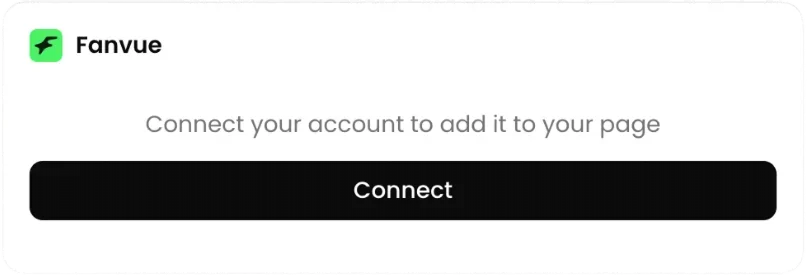
Login to your page, tap Add content › Connected accounts › Connect Fanvue.
2. Sign in to Fanvue
A secure Fanvue prompt opens. Sign in once to link your Fanvue account to hoo.be.
No Fanvue account yet? You can create one right from that same prompt. Tap Sign up, set up your Fanvue account, and upload your content. Once it's live, come back to the connection in your page settings and connect your account to start displaying it.
3. Choose how it displays
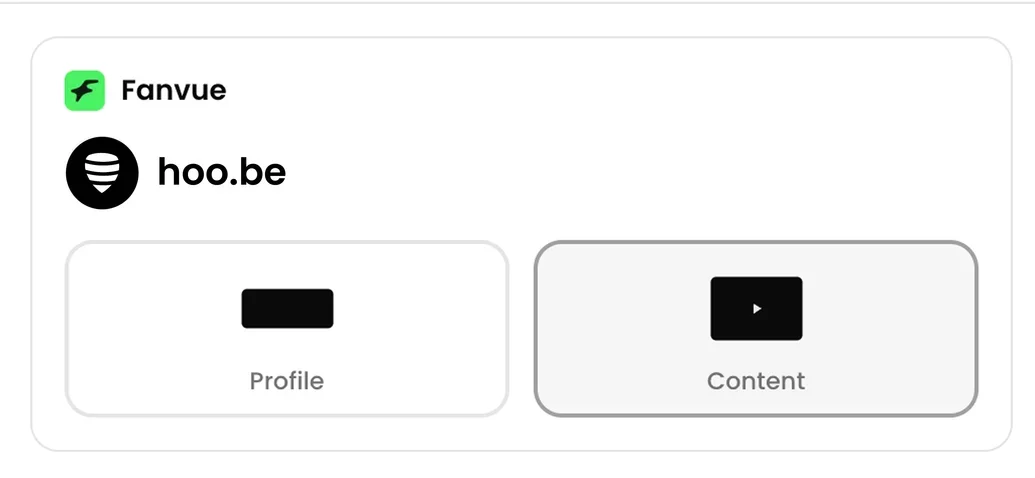
Pick the layout that fits your page: Profile + Content, Profile, or Content. A new block starts as Profile + Content.
 Instagram@yourhandle · 128K Followers
 YouTube@yourchannel · 44.2K Subscribers
 TikTokConnect to show your countConnect
Three ways to display it
Same connection, three looks. Switch anytime.
Profile + Content
Your account header sitting over your recent posts, in one card. This is what a new block starts as.
Profile
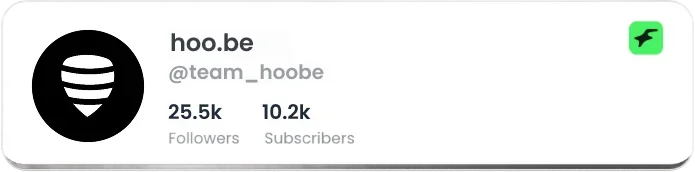
A clean snapshot of your account, with your follower and subscriber counts front and center. Best when you want a simple, credible link to your Fanvue.
Content

A grid of your most recent posts. Anything you've flagged for subscribers & followers shows in full, while subscribers-only posts stay blurred, a preview that invites the tap. You set these flags right in your Fanvue feed.
Set it and forget it. The integration always pulls your latest Fanvue content, so once it's added, your page keeps itself current. Nothing to update, nothing to maintain.
Add Fanvue in about a minute
Connect once and let your page do the converting.
Was this article helpful?